Active Synchronization
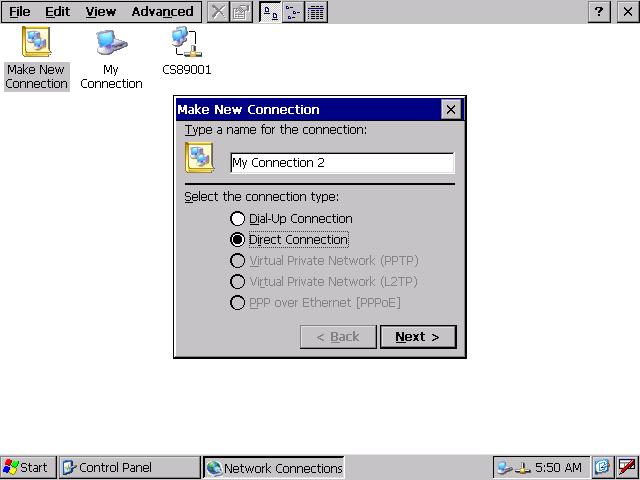
Configure New connection
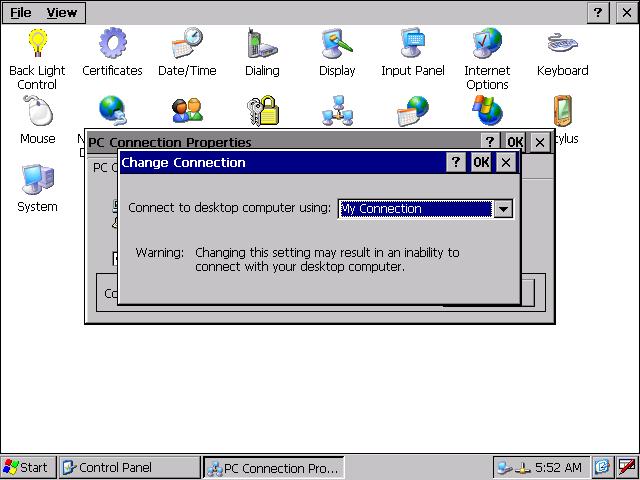
set My connection
Active Synchronization:
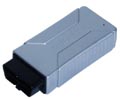
We use this option to connect the AutoHex Auto scan tool to another PC via USB cable.
Before using this option you must install first ActiveSync program on the other PC, ActiveSync can be downloaded from www.microsoft.com By ActiveSync program you can connect your AutoHex to another PC and exchange files and data and the AutoHex device will appear on your computer as Mobile device. To configure ActiveSync:
- Click (Start) menu and go to (Control Panel).
- Open (Network and dial-up connections) Make new connection, choose (Direct connection), then click (Next) Button and in (Select device) options, you must choose (Serial on USB) then click (Finnish) Button.
- Go to (PC Connection Properties) and click (Change) Button and Select (My Connection) then click (OK) in the active title bar to get back to (PC Connection Properties) and click (OK) on the active title bar to finish this operation, You will notice on the Taskbar on AutoHex screen, a new icon appears showing you the connection status with the other PC.
Autohex II Reviews

AutoHex II