Using Autohex to Send and Recieve Emails
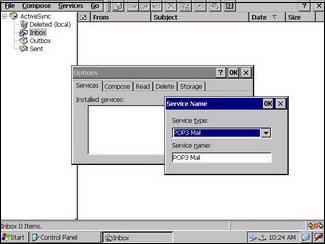
Setting Email Options
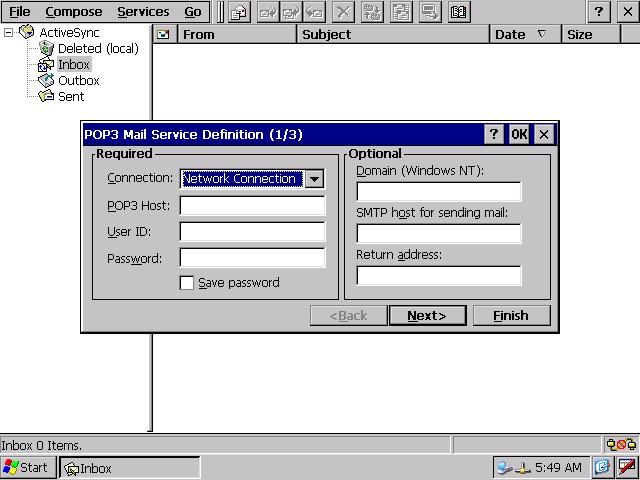
Setting POP3 Options
Using AutoHex for sending and receiving Emails:
· Go to (Start) Menu.· Go to (Settings) menu
· Click (Control Panel) and it shows up on your screen
· Click (Network and dial-up connection) to configure the internet connection.
There is a default LAN connection within the system
· IP Address Tab:
You can configure you device IP address
· Name Servers Tab:
You can configure your internet service provider settings and click (OK) to finish your settings in (Control Panel).
On your desktop click (Inbox) icon to start your email service From (Service) menu select (Options) and a dialog will appear.
From (Service) Tab add your Email settings.
By using the on screen keyboard, write the desired settings and your email address and password and start receiving and sending emails with AutoHex Diagnostic scan tool..
Autohex II Reviews

AutoHex II